WordPress System Requirements
Database: MySQL 5.0 or higher
Operating System: Cross-platform compatible
PHP Compatibility: PHP 5.2 or higher
Supported Web Servers:
- LAMP (Linux)
- WAMP (Windows)
- MAMP (Macintosh)
- XAMP (Cross-platform)
Supported Browsers: Google Chrome, Firefox, Safari, Opera, and Internet Explorer (version 8 or higher)
WordPress Download Guide
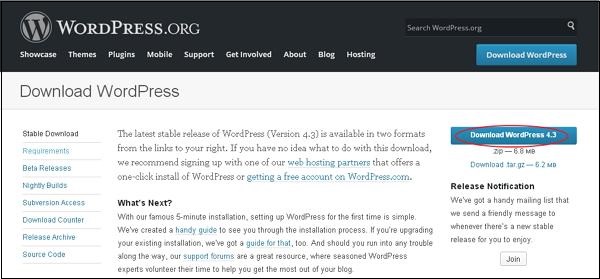
To download WordPress, visit https://wordpress.org/download/, where you will be greeted by the screen shown in the snapshot below.
Setting Up the Database
WordPress requires a MySQL database to store your site’s data. Follow these steps to get it ready:
- Create a new, empty database on your local server or hosting account.
- Set up a database user and password (common defaults include
rootfor both, or you can use your own custom credentials). - Proceed with installation once your database is ready and configured.
Local WordPress Installation Guide
Setting up WordPress locally on your computer is a straightforward process. Follow these steps to get started:
1.Extract and Upload Files:Step 1.
Extract the downloaded WordPress ZIP folder and place it inside your web server’s root directory or localhost folder.
2.Launch the Installer:Step 2.
Open your web browser and navigate to your WordPress folder’s path (for example, localhost/<your_wordpress_folder>). This will open the initial screen of the WordPress setup wizard.
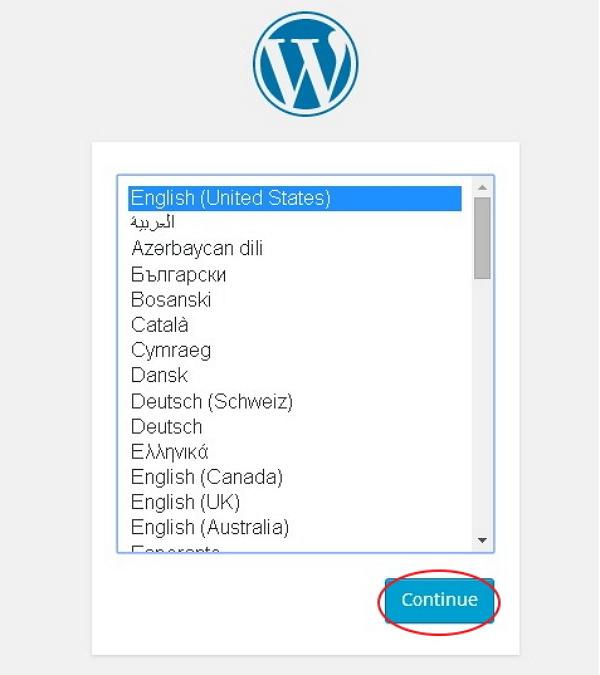
Select your language for the WordPress and click on Continue.
Step (3) − In this step, you can view the information needed for the database before proceeding with WordPress installation.
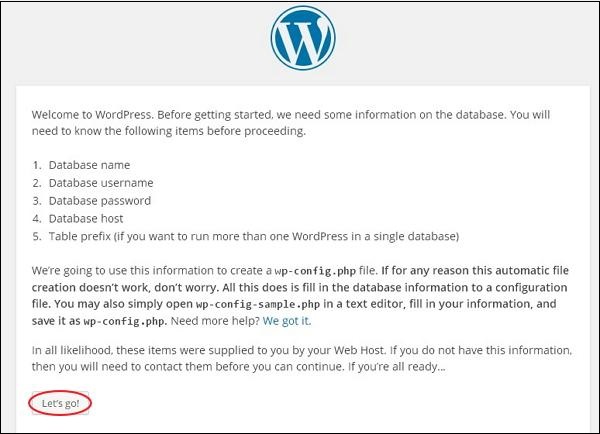
Click on Let’s go!
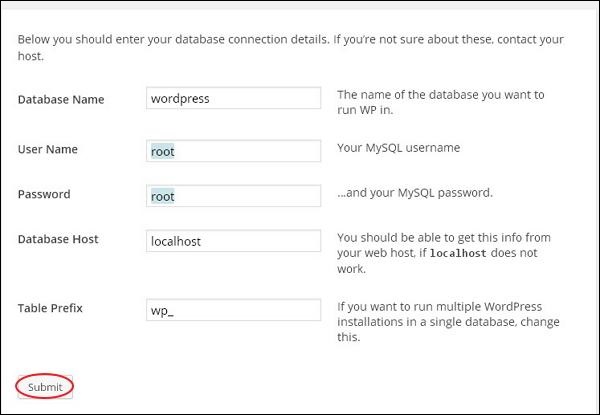
Step (4) − Here, you have to enter the information about the MySQL database as described in the following screen.
Here is a clear breakdown of the database configuration details required during the setup process:
- Database Name: Enter the name of the MySQL database you created specifically for WordPress.
- Username: Provide your MySQL database username.
- Password: Enter the password associated with your MySQL user account.
- Database Host: Specify your database host (typically set to
localhostby default). - Table Prefix: Enter a prefix for your database tables, which allows you to run multiple websites safely on a single database (you can keep the default value).
Once you have filled in all the required details, click the Submit button to proceed.
- Next Step: WordPress will automatically verify your database credentials and display a confirmation screen once the connection is successful.
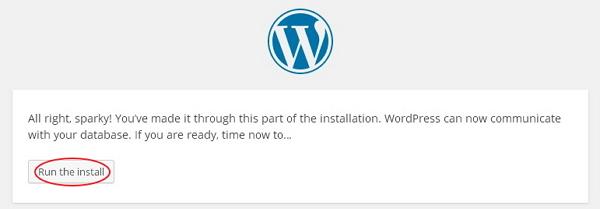
Click on Run the install
Step (6) − Enter administrative information.
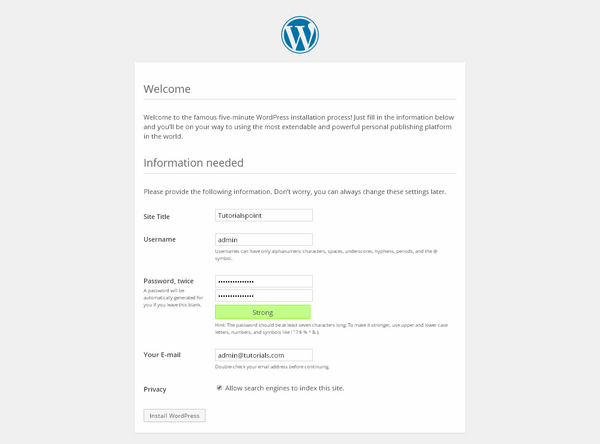
Configuration Fields for Your WordPress Site
- Site Title: Enter the name or title you want to give to your new WordPress website.
- Username: Choose a secure username that you will use to log into your WordPress dashboard.
- Password: Enter a strong password twice to ensure accuracy and protect your site from unauthorized access.
- Your E-mail: Provide a valid email address, which is used for receiving site updates, notifications, and recovering your password if needed.
- Privacy: Check the box if you want to allow search engines to index your site; leave it unchecked if you prefer to hide your site from search engines while under development.
Once you have filled in all the required details, click the Install WordPress button to complete the setup.
Step (7) − After installation being successful, you will get a screen of the stating success as seen in the following screen.
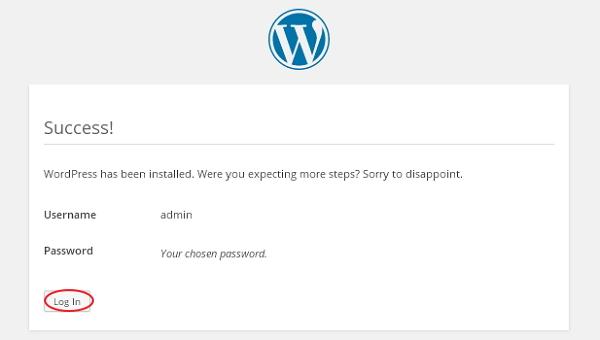
You can view your username and password detail added in WordPress.
Click on Log In button.
Step (8) − After clicking on login, you will get a WordPress Admin Panel as depicted in the following screen.
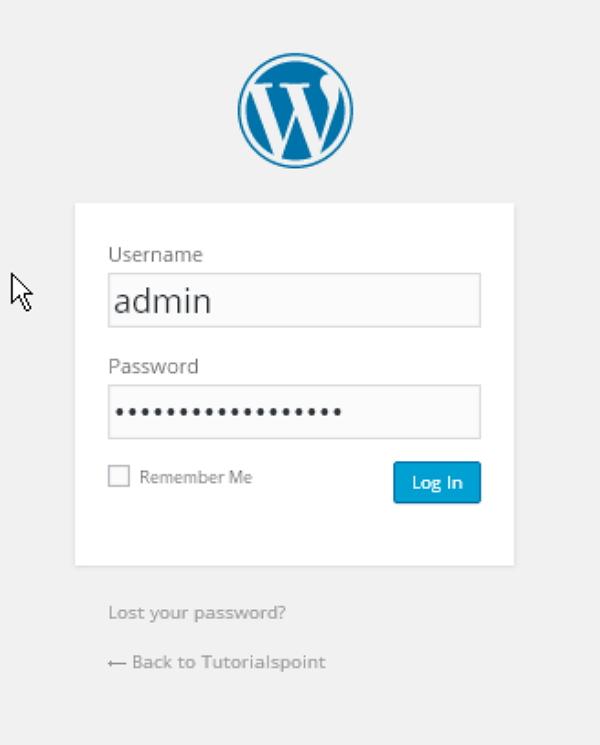
Enter the username and password which you had mentioned during installation as shown in step 6 and click on the Log In button.