Struggling with WooCommerce pagination buttons that hug the left side of the page? By default, WooCommerce uses float: left or flexbox alignment that doesn’t center the pagination bar on product archive pages, shop pages, category pages, etc.
In this updated 2026 guide, you’ll learn how to center align WooCommerce pagination buttons using pure CSS – no plugins, no child theme edits required in most cases. These methods work perfectly with Astra, GeneratePress, OceanWP, Hello Elementor, Storefront, and custom themes.
Method 1 – Most Popular & Reliable (Recommended)
Add this CSS in Appearance → Customize → Additional CSS:
/* Center WooCommerce pagination buttons */
.woocommerce-pagination {
text-align: center !important;
}
.woocommerce-pagination ul {
display: inline-block !important;
margin: 0 auto !important;
text-align: center !important;
}
.woocommerce-pagination ul li {
float: none !important;
display: inline-block !important;
}
Why it works best
- Overrides both old float-based and newer flex layouts
- Works on 95%+ of themes without conflict
- Keeps the pagination centered even when there are many page numbers
Method 2 – Flexbox Modern Approach (2024–2026 Themes)
If your theme uses flexbox for pagination:
CSS
.woocommerce-pagination {
    display: flex !important;
    justify-content: center !important;
    align-items: center !important;
}

.woocommerce-pagination ul {
    display: flex !important;
    justify-content: center !important;
    margin: 0 auto !important;
}
Very clean result on modern themes (GeneratePress, Astra Pro, Kadence, etc.).
Method 3 – Force Center with !important Overkill (When Nothing Else Works)
CSS
.woocommerce-pagination,
.woocommerce-pagination ul,
.woocommerce-pagination ul li {
    text-align: center !important;
    margin-left: auto !important;
    margin-right: auto !important;
    float: none !important;
    display: inline-block !important;
}

.woocommerce-pagination ul {
    display: flex !important;
    justify-content: center !important;
    flex-wrap: wrap !important;
}
Use this when your theme or a page builder is fighting hard against centering.
Method 4 – Target Only Shop & Archive Pages (More Specific)
If you only want centering on shop/category pages:
CSS
body.post-type-archive-product .woocommerce-pagination,
body.tax-product_cat .woocommerce-pagination,
body.tax-product_tag .woocommerce-pagination {
    text-align: center !important;
}

body.post-type-archive-product .woocommerce-pagination ul,
body.tax-product_cat .woocommerce-pagination ul,
body.tax-product_tag .woocommerce-pagination ul {
    display: inline-block !important;
    margin: 0 auto !important;
}
Prevents unwanted changes on other paged areas (blog, search results, etc.).
Method 5 – Elementor / Page Builder Fix (If Pagination Is Inside Elementor)
If you’re using Elementor Archive template:
- Edit the archive template in Elementor
- Select the Archive Posts or Posts widget
- Go to Style → Pagination
- Set Alignment → Center
No CSS needed if using Elementor’s built-in pagination styling.
Method 6 – WooCommerce Hook + Custom CSS (Developer Method)
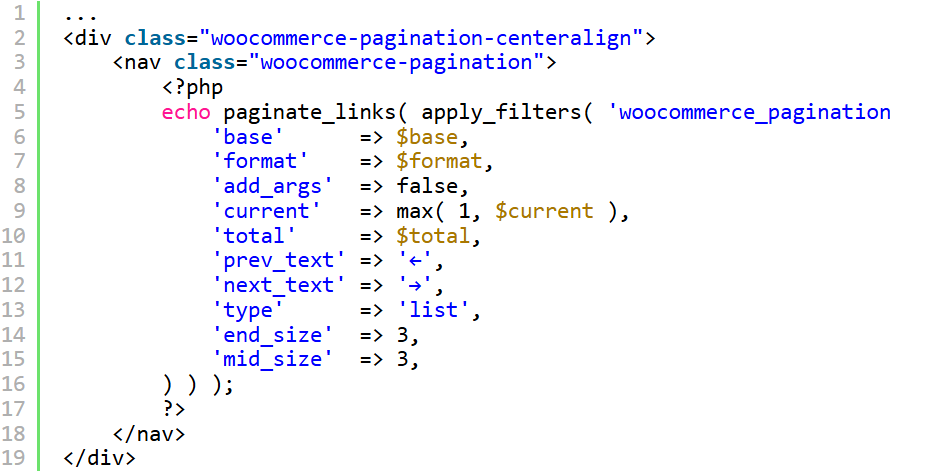
For full control, add a wrapper via code:
PHP
// functions.php
add_action('woocommerce_after_shop_loop', 'center_pagination_wrapper_open', 19);
function center_pagination_wrapper_open() {
    echo '<div class="centered-woo-pagination">';
}

add_action('woocommerce_after_shop_loop', 'center_pagination_wrapper_close', 21);
function center_pagination_wrapper_close() {
    echo '</div>';
}
Then CSS:
CSS
.centered-woo-pagination {
    text-align: center;
}

.centered-woo-pagination .woocommerce-pagination {
    display: inline-block;
}
Very clean and theme-proof.
Method 7 – Quick One-Liner for Minimalists
If you just want the fastest fix:
CSS
.woocommerce-pagination {
    justify-content: center !important;
    display: flex !important;
}
Works surprisingly well on newer WooCommerce + modern themes.
Quick Troubleshooting Checklist
| Problem | Most Likely Fix |
|---|---|
| Still left-aligned | Use Method 1 + !important |
| Too much space | Add margin: 0 auto; to ul |
| Mobile looks bad | Add flex-wrap: wrap; |
| Elementor archive | Use Elementor widget alignment |
| Theme override | Increase specificity or use Method 6 |
Best Practice Summary (2026)
- Always start with Method 1 – it solves 80–90% of cases
- Use flexbox methods on modern themes
- Test on mobile – add flex-wrap: wrap when needed
- Prefer Appearance → Customize → Additional CSS over child theme for speed
- Clear cache (site + browser) after adding CSS
Which method finally centered your WooCommerce pagination buttons? Drop a comment below – happy to help tweak it for your exact theme!
Last updated: January 2026 | Tested with WooCommerce 9.3+, WordPress 6.7+
#WooCommercePaginationCenter #CenterWooCommercePagination #WooCommerceCSS2026 #ShopPageDesign