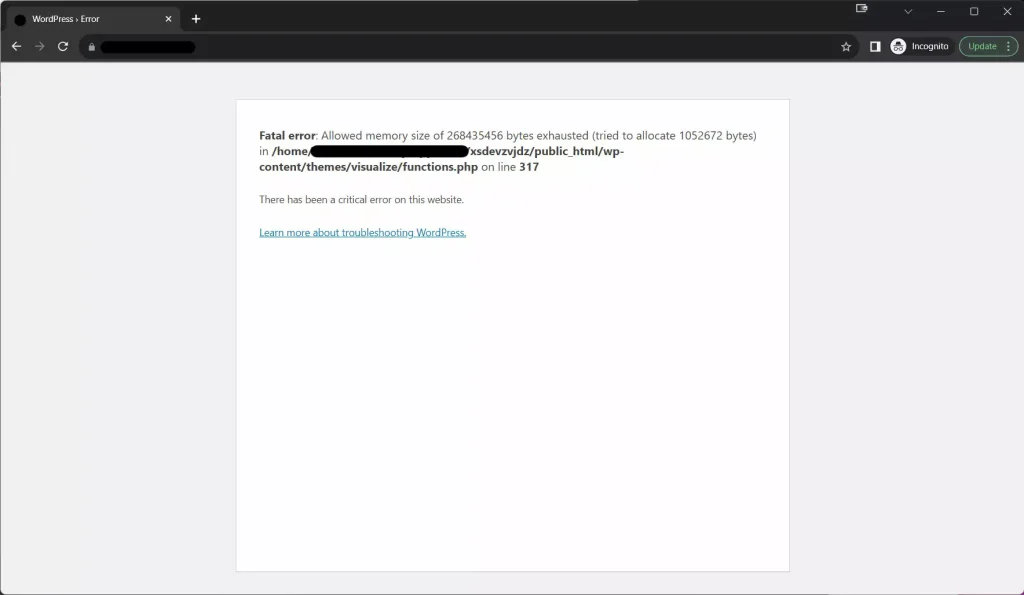
Why Increase Maximum File Upload Size Too? Addressing Critical Error Risks
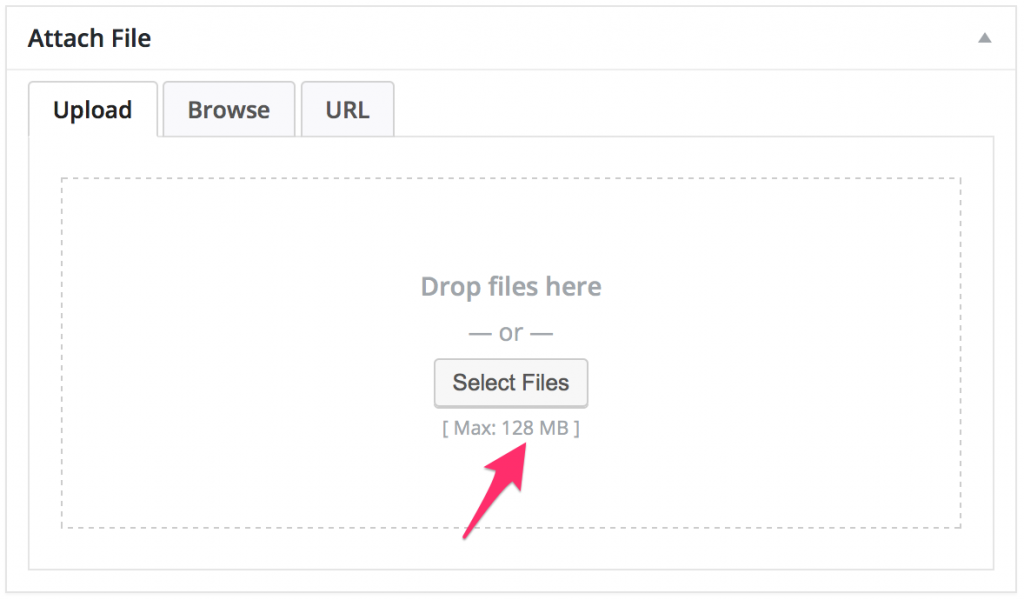
Uploading big media (images, videos, themes) hits separate limits: upload_max_filesize and post_max_size. Processing large files eats memory, linking the two issues. Default upload is often 2–8MB — increase to 64–256MB for modern needs.
Understanding the potential for a critical error helps in planning your uploads effectively.
Check current limits: Media > Add New shows “Max: X MB”.
For more optimization tutorial, check WordPress Performance Optimization section
Method 1: Edit wp-config.php (Recommended No-Plugin Fix)
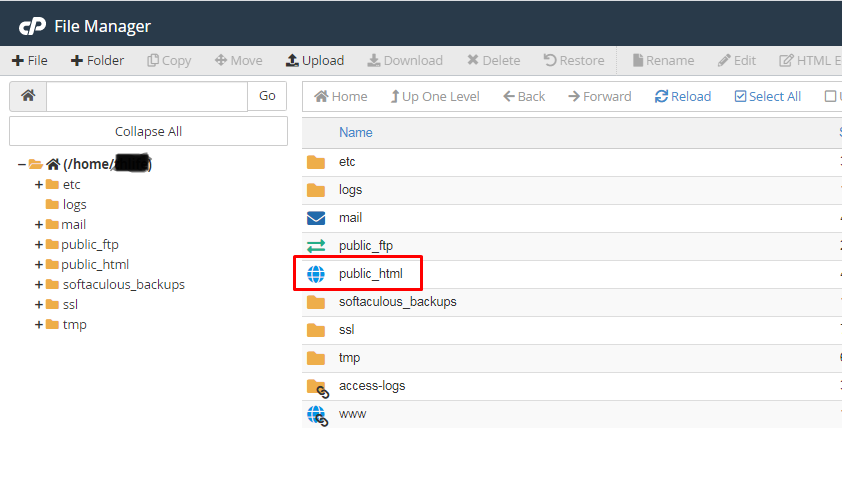
Access files via cPanel File Manager, FTP, or hosting file explorer. Backup first!
- Open wp-config.php in root folder.
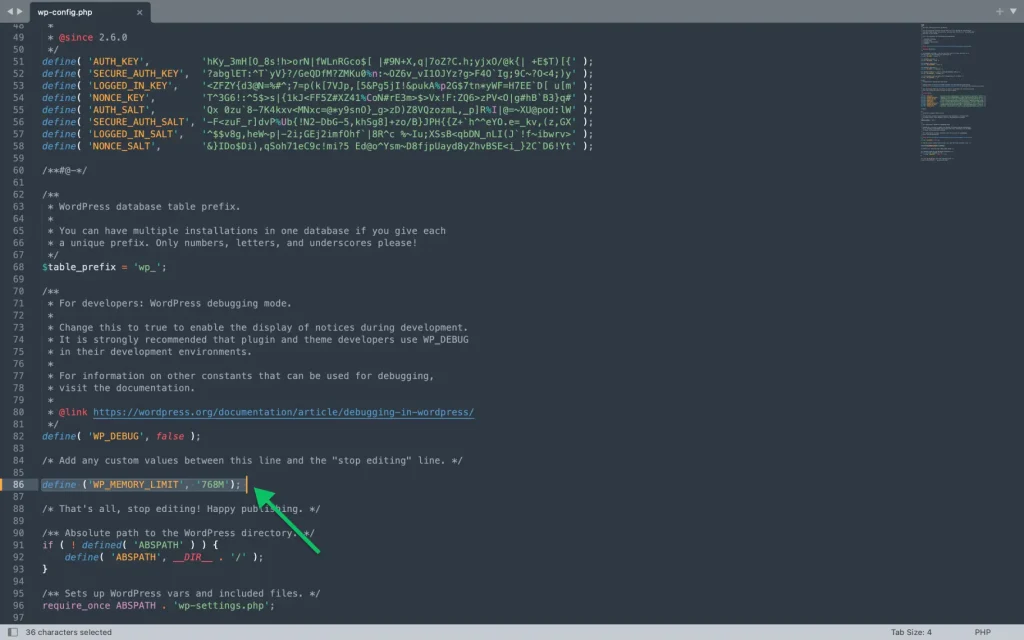
- Add before /* That’s all, stop editing! Happy publishing. */:
define(‘WP_MEMORY_LIMIT’, ‘512M’); // General/frontend memory
define(‘WP_MAX_MEMORY_LIMIT’, ‘1024M’); // Admin/backend memory
@ini_set(‘upload_max_filesize’, ‘128M’);
@ini_set(‘post_max_size’, ‘256M’);
@ini_set(‘max_execution_time’, ‘300’);
Save, clear cache, refresh site.
Method 2: Use a Lightweight Plugin for Quick Limits on critical error
No file editing? Install one:
- MaxLimits – Increase Maximum Upload, Post & PHP Limits (free)
- WP Maximum Upload File Size
Steps:
- Plugins > Add New > Search “MaxLimits” or “increase upload”.
- Install, activate.
- Go to settings → Set memory_limit 512M, upload_max_filesize 128M+.
- Save — changes apply instantly.
Ideal for beginners avoiding code.
Method 3: Edit .htaccess File (Apache Servers)
For hosts allowing .htaccess overrides:
- Find .htaccess in root.
- Add at top:
text
php_value memory_limit 512M
php_value upload_max_filesize 128M
php_value post_max_size 256M
php_value max_execution_time 300- Save. If 500 error, remove lines — host may block.
Method 4: Update php.ini or Hosting Panel Settings
Best for cPanel/DirectAdmin:
- MultiPHP INI Editor → Select domain → Set memory_limit = 512M, upload_max_filesize = 128M.
- Or create .user.ini in root with same values.
Method 5: Contact Hosting Support for Server-Level Changes
If above fail (shared hosting caps), ask support to raise server-wide:
- PHP memory_limit to 512M+
- upload_max_filesize/post_max_size accordingly
Providers like SiteGround, Kinsta, Hostinger often bump easily.
Verify Your Changes and Test Safely
- Tools > Site Health > Info > Server → Check memory_limit.
- Upload large file in Media.
- Create phpinfo.php: <?php phpinfo(); ?> → View for confirmations.
- Disable plugins temporarily via FTP (rename plugins folder) if error persists.
Prevention Tips to Avoid Future Errors
- Use lightweight themes/plugins.
- Optimize images/databases regularly.
- Enable WP_DEBUG in wp-config.php for logs.
- Choose optimized hosting with higher defaults.
Conclusion
Fixing Fatal error: Allowed memory size of bytes exhausted usually takes minutes via wp-config.php or a plugin. Combine with upload size increases for seamless media handling. Test changes carefully — start conservative (256M–512M) to avoid over-allocating on shared plans.
Fixed this error? Share your before/after memory values or hosting tips in the comments!
External links references:
https://www.siteground.com/kb/fix-fatal-error-allowed-memory-size-exhausted