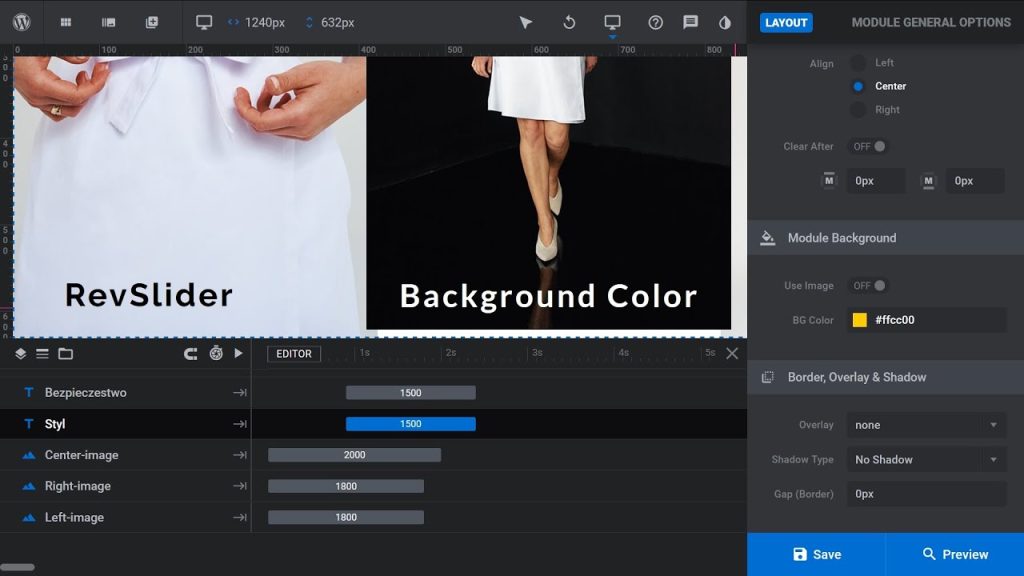
Opacity controls transparency: 100% is fully solid, 0% is invisible. You adjust it directly in the plugin’s color picker for the slide background or via a shape layer overlay.
In this guide, we’ll cover the easiest methods for how to change Revolution Slider background color opacity using the built-in editor (no extra plugins needed). These steps apply to Slider Revolution 6+ / 7+ on WordPress.
Table of Contents
- Understanding Background Types in Slider Revolution
- Method 1: Change Slide Background Color Opacity (Direct Colored Background)
- Method 2: Add a Semi-Transparent Overlay Shape Layer (Most Flexible)
- Method 3: Use CSS for Advanced/Custom Opacity (Fallback)
- Tips for Best Results and Troubleshooting
- Conclusion
Understanding Background Types in Slider Revolution
Slider Revolution supports these slide backgrounds:
- Image/Video (common, with optional overlays)
- Colored (flat color or gradient)
- Transparent
For opacity on a color, set the background to “Colored” and use the color picker. For overlays on images/videos, add a full-size shape layer.
Method 1: Change Slide Background Color Opacity (Direct Colored Background)
Best for solid/semi-transparent colored slides without an image.
- Open your module in the Slider Revolution editor.
- Select the slide in the slide selector (bottom timeline).
- Go to Slide Options (sidebar) > Background > Source.
- Set Background Type to Colored (or ensure it’s not Image/Video if you want pure color).
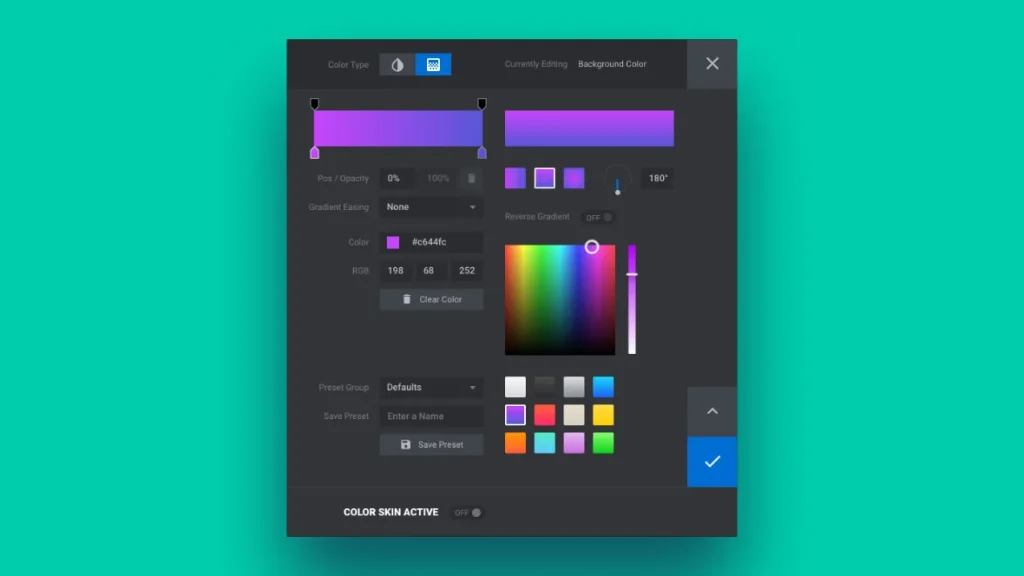
- Click the BG Color swatch (small colored square).
- In the color picker popup:
- Choose your color (hex, RGB, or wheel).
- Find the Opacity field (bottom left) or Opacity Slider (right side of saturation bar).
- Drag the slider down for more transparency (e.g., 50% for semi-transparent).
- Or type a percentage directly (e.g., 60%).
- Click the blue checkmark to apply.
- Save the slide/module and preview.
This makes the entire slide background semi-transparent — great for gradients too (adjust Pos/Opacity per stop).
Method 2: Add a Semi-Transparent Overlay Shape Layer (Most Flexible)
Ideal when you have an image/video background and want a colored overlay (e.g., dark tint for text legibility).
- In the editor, select your slide.
- Click Add Layer > Shape.
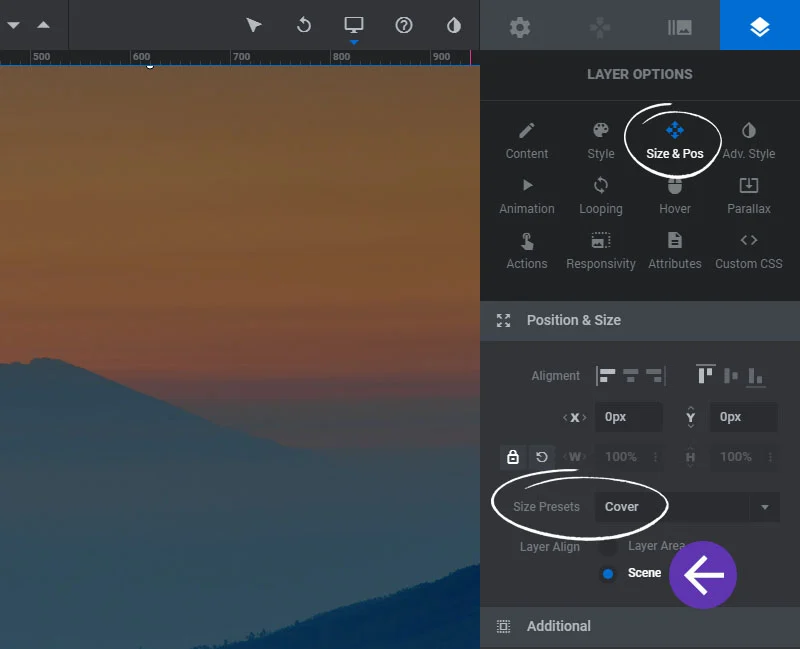
- In Layer Options > Size & Pos:
- Set Size Preset to Cover.
- Set Layer Align to Scene (full module coverage).
- Ensure Width/Height are 100%/100%.
- Go to Style tab > Background.
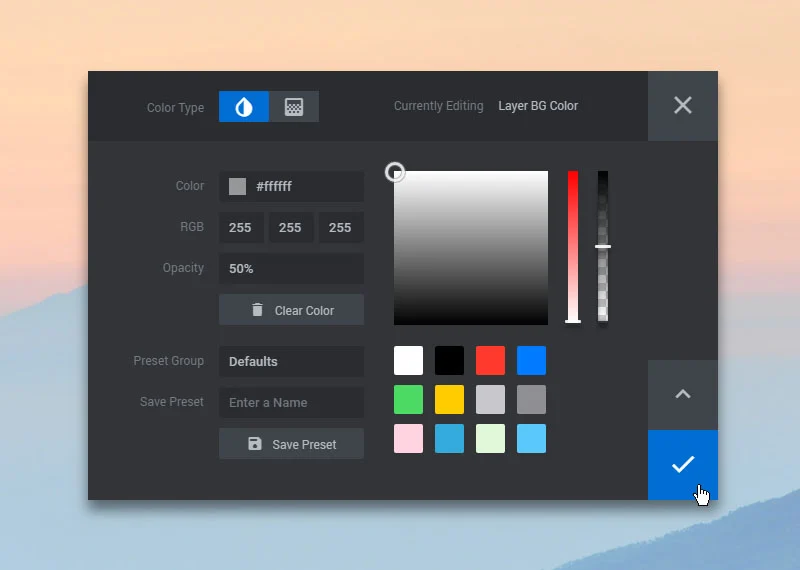
- Click BG Color swatch.
- In color picker:
- Pick color (e.g., black #000000 for dark overlay).
- Set Opacity to your desired level (e.g., 40–70% for readability).
- Optional: Add Blend Mode (e.g., Overlay/Multiply) for creative effects.
- Save and preview.
This overlay sits above the main background but below text/layers.
Method 3: Use CSS for Advanced/Custom Opacity (Fallback)
If the editor doesn’t suffice (rare in recent versions):
- Identify your slider’s unique class (e.g., via browser inspect: usually .rev_slider_wrapper or .tp-revslider-mainul).
- Go to Module Options > Custom CSS (or site-wide custom CSS).
- Add something like:
CSS
/* For main slide background image opacity */
.my-slider .tp-bgimg.defaultimg {
    opacity: 0.6 !important;
}

/* Or for overlay on specific slide */
.rev_slider .slotholder:after {
    content: "";
    position: absolute;
    top: 0; left: 0; right: 0; bottom: 0;
    background: rgba(0, 0, 0, 0.5); /* black with 50% opacity */
    pointer-events: none;
}
Replace .my-slider with your actual class. Use rgba() for color + opacity.
This is useful for legacy setups or precise control.
Tips for Best Results and Troubleshooting
- Preview often — opacity affects mobile/desktop differently.
- For text readability: Use 50–70% dark overlay.
- If changes don’t show: Clear cache (browser, site, CDN) and hard refresh.
- Update Slider Revolution — 2026 versions have improved color tools.
- Test gradients: Adjust per-stop opacity in the picker.
- Avoid 0% opacity on main background if no image — it may look broken.
Conclusion
How to change Revolution Slider background color opacity is straightforward using the built-in color picker (for direct backgrounds) or a shape layer overlay (for tinted images/videos). Start with Method 1 or 2 for most cases — no coding required.
Achieved the look you wanted? Drop your opacity percentage or share a screenshot in the comments for more tips!
#RevolutionSlider #WordPressSlider #SliderRevolution #WordPressTutorial
Reference Link:
https://www.sliderrevolution.com/manual/the-tools-of-the-color-selection-dialogue
https://www.sliderrevolution.com/documentation/slide-background
https://www.sliderrevolution.com/faq/how-to-add-a-semi-transparent-overlay